


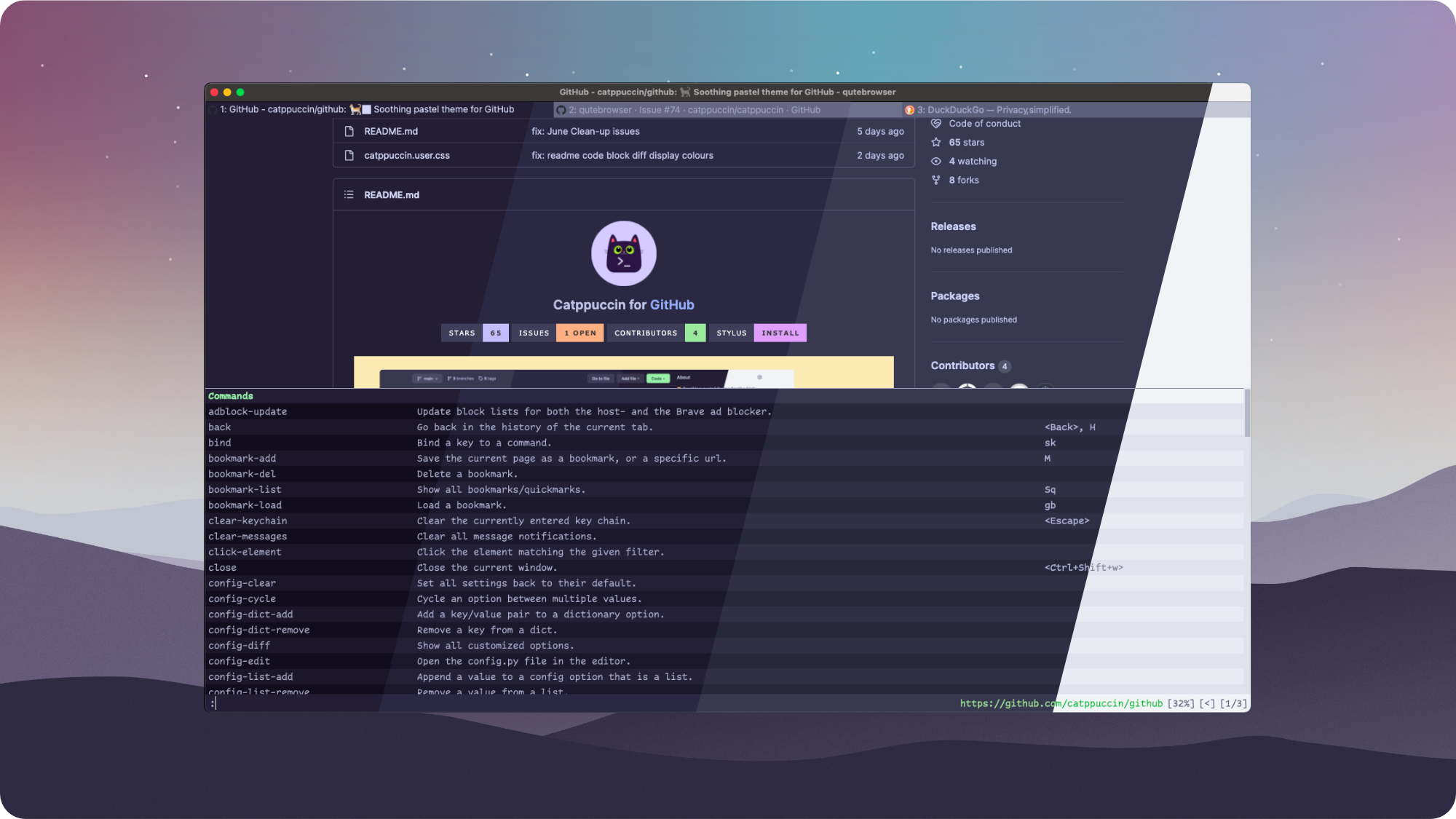
## Usage
There are two ways to install & manage this theme:
### Manual config:
1. Find out where the qutebrowser stores its `config` directory for your OS.
Run `:version`, and take a look at `Paths: config` to find out.
2. Clone this repo into that `config` directory:
```sh
# Linux
$ git clone https://github.com/catppuccin/qutebrowser.git ~/.config/qutebrowser/catppuccin
# macOS
$ git clone https://github.com/catppuccin/qutebrowser.git ~/.qutebrowser/catppuccin
# windows
$ git clone https://github.com/catppuccin/qutebrowser.git $LOCALAPPDATA/qutebrowser/config/catppuccin
```
3. Make sure your `config.py` contains:
```python
import catppuccin
# load your autoconfig, use this, if the rest of your config is empty!
config.load_autoconfig()
# set the flavor you'd like to use
# valid options are 'mocha', 'macchiato', 'frappe', and 'latte'
# last argument (optional, default is False): enable the plain look for the menu rows
catppuccin.setup(c, 'mocha', True)
```
4. Done!
### Let qutebrowser manage your themes:
1. Insert the following code into your `config.py`:
```python
import os
from urllib.request import urlopen
# load your autoconfig, use this, if the rest of your config is empty!
config.load_autoconfig()
if not os.path.exists(config.configdir / "theme.py"):
theme = "https://raw.githubusercontent.com/catppuccin/qutebrowser/main/setup.py"
with urlopen(theme) as themehtml:
with open(config.configdir / "theme.py", "a") as file:
file.writelines(themehtml.read().decode("utf-8"))
if os.path.exists(config.configdir / "theme.py"):
import theme
theme.setup(c, 'mocha', True)
```
2. Remove your current theme from your `.qutebrowser` directory & reload `config.py`.
## 💝 Thanks to
- [winston](https://github.com/nekowinston)
- [iruzo](https://github.com/iruzo)

Copyright © 2021-present Catppuccin Org


 Catppuccin for qutebrowser